
Local and network
Folders you grant · iCloud Drive and File Provider folders, with sync status · SMB, AFP and NFS shares through Connect to Server
Local folders, cloud drives and servers, side by side. Move files, preview almost anything, and keep your work flowing.
Sources
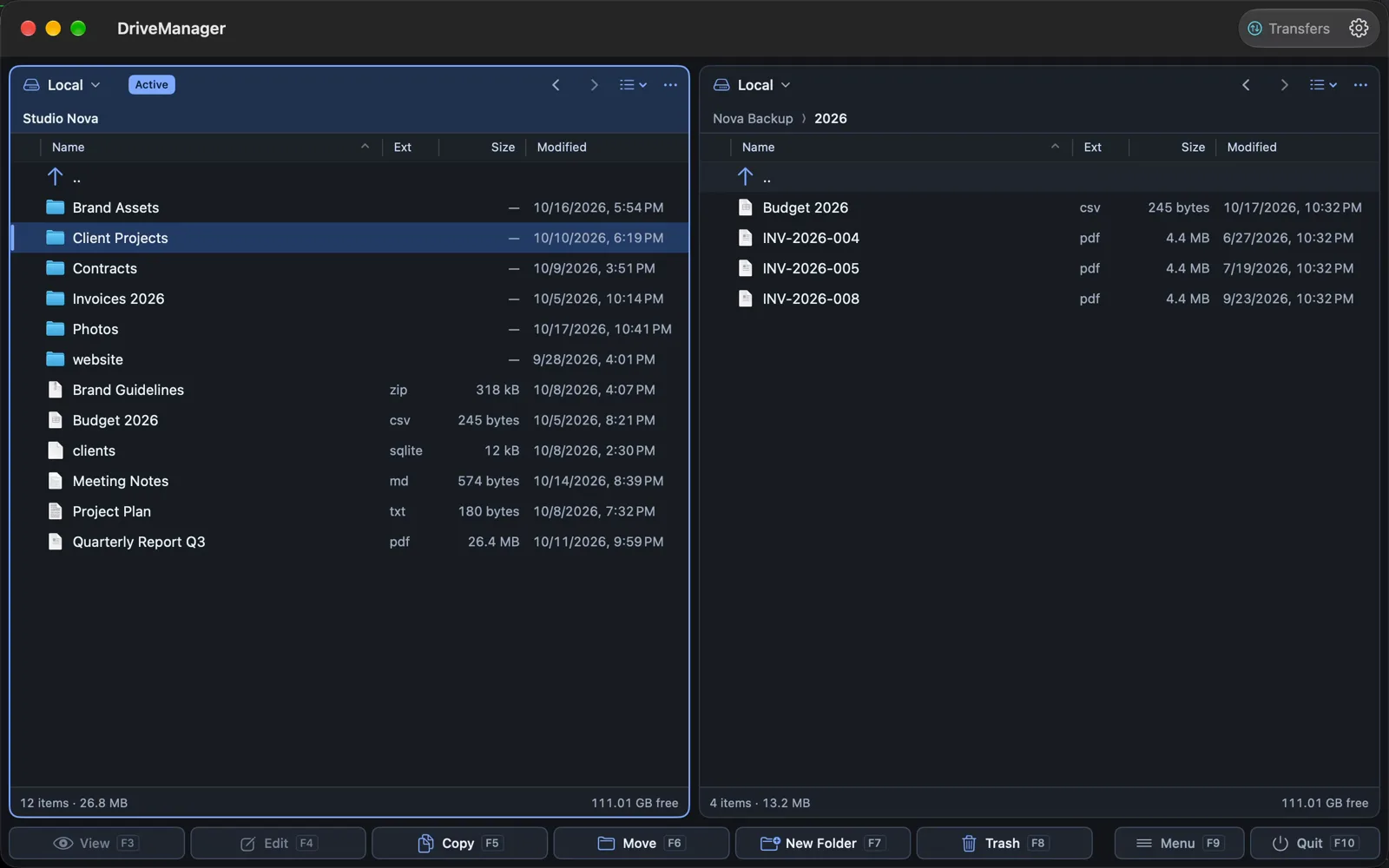
Each panel — and each tab — can show any source. Copy, move and compare between any two of them with the same keys.
For example
Between different services the files travel through your Mac; DriveManager doesn’t promise server-to-server copies.
Folders you grant · iCloud Drive and File Provider folders, with sync status · SMB, AFP and NFS shares through Connect to Server
Google Drive: any number of accounts, shared drives, Recent, Starred, Trash · Dropbox: personal and team · OneDrive: personal, work or school, SharePoint libraries
One-time setup Dropbox and OneDrive connect through your own free developer app registration (a Dropbox app key, or a Microsoft Entra app ID), entered once in Settings → Accounts. Google Drive signs in directly. Setup details in the FAQ
WebDAV (Nextcloud, ownCloud, Synology…) · SFTP with password or key · FTP and FTPS · Amazon S3, Backblaze B2, Cloudflare R2, Wasabi, MinIO
File operations
The video couldn’t play here.
Open the videoMulti-Rename (⌃M) applies an ordered list of rules — masks, counters, replace, case — and shows every new name before anything changes. Presets keep your favourite rules; Undo takes a rename back.
See what differs between two folders on any sources, choose a direction, run it. Profiles remember the pairs you sync often.
Background jobs with a queue and an Activity Log, speed limits, error rules and, if you turn it on, verification after copying.
Viewers
F3 opens the file under the cursor in a fast viewer, local or in the cloud. ← and → step through the folder.
For developers
Keyboard
If you grew up with Norton, Total or Midnight Commander, you already know the keys. New to it? The button bar at the bottom shows what each one does.
On a Mac keyboard, ⌘3–⌘8 work as F3–F8 too.
Save both panels’ tabs as a named workspace — “Client project” — and reopen it with one key. Favorites, linked browsing and saved searches work the same way.
Appearance
Several themes, light and dark, three densities, and Commander or Finder style for each panel. Increase Contrast is supported too.
This screenshot couldn’t be loaded.
Views: List, Brief and Thumbnails, grouped by kind, date, size or extension. Layouts: side by side, stacked or a single panel.
Everything in it
What DriveManager does today, by area.
Two panels, each with its own source · tabs: lockable, draggable between panels, restored on launch · back/forward history, breadcrumb path, Go to Folder · List, Brief and Thumbnails views, grouping by kind, date, size, extension · side by side, stacked or single panel · Commander or Finder style per panel
Named workspaces of both panels’ tabs · favorites with groups and keyed shortcuts · linked browsing of both panels · type-to-jump and quick filter · Quick View pane and system Quick Look · folder sizes in the background, Get Info
Full keyboard control with the Total Commander layout · command palette · every shortcut rebindable · searchable key list (F1)
Copy, move, duplicate, rename, new folder, trash and delete between any two sources · background jobs, queue, Activity Log, notifications · speed limits and error rules · drag and drop with Finder and other apps · clipboard across sources · new files from templates, new Google Docs, Sheets and Slides
Multi-Rename with rules, live preview, presets and Undo · checksums CRC32, MD5, SHA-1, SHA-256, SHA-512, checksum files verified, verify after copy · folder compare and one-way or two-way sync with profiles · file compare: text diff, hex side by side, image compare
Search by name, content, kind, size and date · saved searches and history · search across all accounts at once · right-click menu with Open With · external editor (F4), cloud files uploaded on save · Finder tags and Spotlight comments · Share and Copy Link, where the service supports it
Google Drive: several accounts, My Drive, Shared with me, shared drives, Recent, Starred, Trash, sharing, auto-refresh · Dropbox: personal and team, restore deleted files, shared links, live refresh · OneDrive: personal and work or school, SharePoint libraries, resumable uploads · iCloud Drive and File Provider status, Download Now and Remove Download
WebDAV with chunked uploads · SFTP with password or key and host-key pinning · FTP and FTPS · S3-compatible storage · SMB, AFP and NFS through Connect to Server
Browse as folders: ZIP, tar (gz, bz2, xz, zstd…), 7z (encrypted too), RAR, ISO, cpio, XAR, CAB, LHA, multi-volume sets · create ZIPs with compression levels and AES-256 · edit ZIPs in place · extract any archive · browse large remote ZIPs without downloading them whole
Text and hex with syntax colouring · PDF · images · video · Markdown · HTML · e-books · Google Docs, Sheets, Slides · app bundles · binaries · property lists · SQLite · archives · disk images · installer packages
Git status, branches, stage, commit, diff, history · fetch, pull, push, clone · your own scripts as Tools · App Deleter · Open in Terminal
Native macOS look, several themes, light, dark and Increase Contrast, three densities · one Settings window, every change applies at once · English and Hungarian
Planned, not in the app yet — no dates promised:
Auto-refresh of server folders · faster parallel S3 uploads, S3 folder rename, AWS SSO and profiles · OneDrive Copy Link, Sharing, Recent, Starred and recycle bin · adding SharePoint libraries by site search · SFTP one-time passwords and jump hosts · export and import of the key map · App Deleter: leftovers of already removed apps, and resetting an app
Privacy
DriveManager runs in Apple’s App Sandbox. It opens only folders you grant it with the standard Open dialog; Full Disk Access is optional and never needed.
Cloud sign-ins, server passwords and keys are kept in the macOS Keychain.
The app talks only to the clouds and servers you connect. It has no analytics, no tracking and no account with us.
Availability
DriveManager is finishing its last checks before release.
€10 one-time purchase, all features
Requires macOS 14 Sonoma or later.
Watch the demoQuestions
DriveManager is coming to the Mac App Store soon. There is no release date yet; this page will link to the store as soon as it is there.
No. The planned price is €10, a one-time purchase through the Mac App Store.
Any Mac with macOS 14 Sonoma or later.
DriveManager runs in Apple’s App Sandbox, so it only sees folders you grant it once with the standard Open dialog. Grants are remembered across launches.
Both connect through your own free developer app registration: a Dropbox app key, or a Microsoft Entra app ID (and optionally a tenant). You enter it once in Settings → Accounts, then sign in as usual. Google Drive needs no setup.
It works next to Finder. Files drag and drop between them, Show in Finder is one click away, and Quick Look (⌘Y) works as usual.
Only to the services you connect yourself. DriveManager has no analytics, no tracking and no account with us.
English and Hungarian. The language follows your Mac and can be changed in Settings.
A 33-second recording of a real session: marking files, copying, photos, the viewer and the command palette.
Watch it in action